The Accordion Layout
Note: These features are part of the Visforms Subscription and are not included in the free Visforms version.
For a better understanding, we recommend reading the documentation completely and using the
Section Introduction
to start.
Relationships explained in earlier sections of the documentation are not repeated here.
Accordion Groups with Field Type “New Page”
Note: Accordions are useful when you want to alternate between hiding and displaying large amounts of content.
You can add as many accordion groups as you like to any form. This is done simply by inserting a New Page field into the form. Position the field in the field order where the accordion group should begin.
Note: The Label option of the New Page field type is used as the heading for the accordion group.
Field Configuration
Accordion Entry Always Open
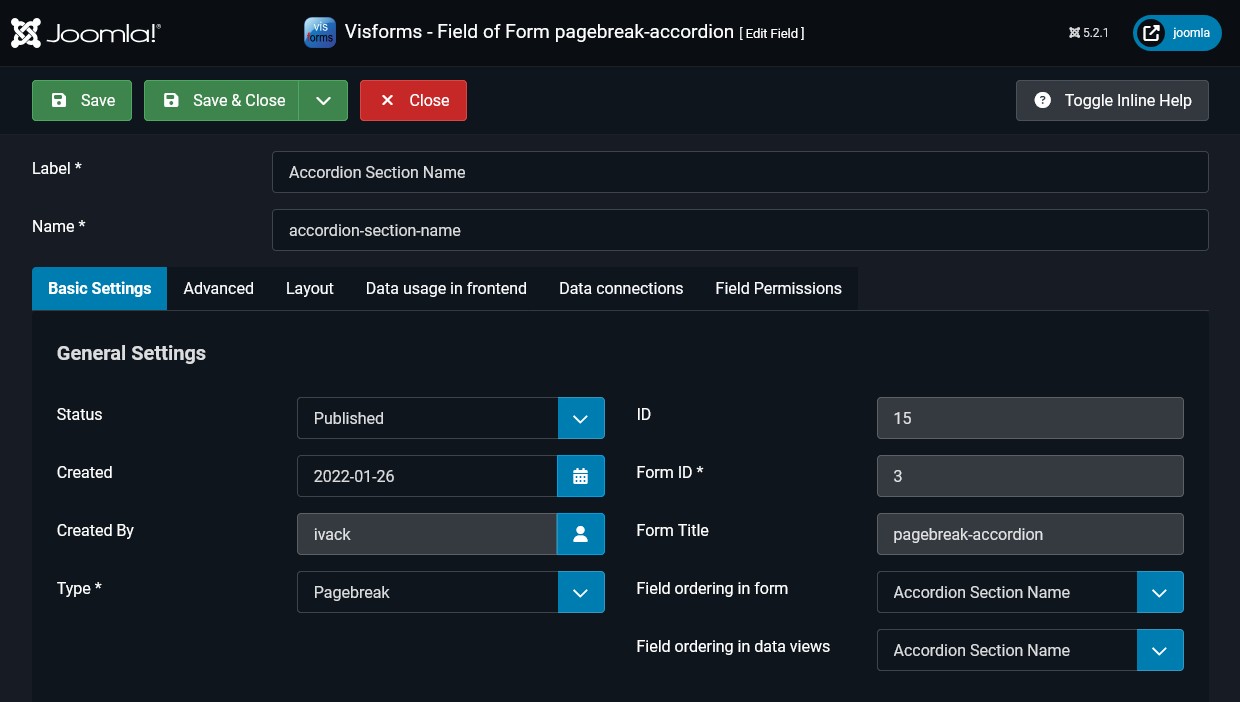
The Accordion Entry Always Open option allows an accordion group to be configured as permanently open.
With the setting Accordion Entry Always Open = ‘Yes’, this accordion group remains open at all times and can no longer be opened or closed.
- Field Configuration » Tab: Basic Settings
Group: Pagebreak Field Settings » Parameter: Accordion Entry Always Open = “Yes”.
Field CSS Class
The Field CSS Class option adds a unique, user-defined CSS class to an individual accordion group. Assigning a unique, user-defined CSS class to an individual accordion group simplifies and improves the formulation of CSS selectors for custom CSS adjustments.
- Field Configuration » Tab: Layout
Group: CSS Class Settings » Parameter: Field CSS Class = ‘'.

Form Configuration
Note: The settings for multi-page forms are only applied if you have created a multi-page form. A multi-page form is created when the form contains at least one field of the type **New Page**.
By default, Visforms interprets a New Page field as a page break and creates a multi-page form.
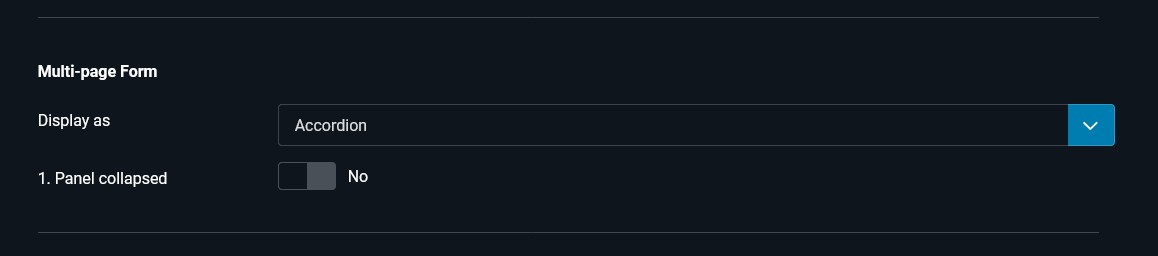
In order for New Page fields to be rendered as accordion groups, the following option must be set in the form:
- Form Configuration » Tab: Advanced » Sub-Tab: Layout
Group: Multi-page Form » Parameter: Display as = “Accordion”.
Control of Panel 1
By default, the first panel of an accordion is displayed open.
The following option can be used to ensure that the first accordion panel remains closed when the page loads:
- Form Configuration » Tab: Advanced » Sub-Tab: Layout
Group: Multi-page Form » Parameter: 1st Panel Closed = “Yes”.
Handling Empty Panels
By default, an empty panel within an accordion is displayed.
An empty panel may arise, for instance, as a result of the Conditional Display settings applied to fields.
The following option allows you to prevent an empty panel from being displayed:
- Form Configuration » Tab: Advanced » Sub-tab: Layout
Group: Multi-page Form » Parameter: Hide Empty Page = “Yes”.
User-defined CSS Classes
The following example configuration
- Form Option: Accordion Element Class = ‘accordion-custom-class’
- Field Option: Field CSS Class = ‘accordion-custom-group-class’
generates the following HTML output (specifically for the Bootstrap 5 UI framework).
<div class="vis-accordion mb-3 accordion-custom-class" id="form3accordion">
	<div class="vis-accordion-item card accordion-custom-group-class">
		<div class="vis-accordion-header card-header">
		...
Visforms adds this automatically
Visforms automatically inserts the code necessary to create a Bootstrap Accordion Element at the position where a New Page field is placed in the field order. All subsequent fields are then located in this accordion section.
An accordion section is automatically closed when another New Page field appears. After the next New Page field, the current accordion element is closed and a new one is started.
After the last form field, Visforms automatically closes the last accordion and displays all parent form information and controls below it. This includes things like a captcha, the Required Field text if it was placed in the form footer, buttons, and other elements.
If you have set the Summary Page option to Yes, Visforms adds a summary page to the form. In addition, Visforms automatically inserts a Check button below the last accordion, which leads to the summary page. Visforms offers you numerous options for customizing the summary page. This is done in the form configuration under the Advanced tab and is explained in the following section: The summary page.
An example form
An example of a form with an accordion layout can be found here: Accordion Layout.