JavaScript Examples Part 3 for solving requirements with the Frontend Web Assets
Note: These features are part of the Visforms Subscription and are not included in the free Visforms version.
Age
Topics
The following topics are included in the example:
- Only run code after the form has been initialized by Visforms.
- React to changes made by the user.
- Determine the date value as text from a date field.
- Calculate with a date value as text and a date object.
- Calculate the age in years taking leap years with leap days into account.
- Address affected fields based on their field ID.
- Make a listbox field invisible.
- Set options for a listbox field.
- Deselect the current option for a listbox field.
Description
The user selects a date of birth. Depending on whether the resulting age means adulthood or not, different additional fields are displayed. If no date is selected, no additional fields are visible. The additional fields for adulthood and minority are all conditional fields.
The display of these conditional fields is controlled by the selection in a control field of the list box type that is later invisible:
- If no selection is made, no additional fields are displayed.
- If option 0 is selected with value 0, the fields for minority are displayed.
- If option 1 is selected with value 1, the fields for adulthood are displayed.
The selection of the invisible control field of the list box type is carried out by the JavaScript code. The JavaScript code calculates the age based on the selected date of birth and sets the corresponding option of the control field. If no date of birth is set or if it is reset by the user, the control list box is set to no selection.
Any number of conditional fields can be displayed and hidden with this logic (age of majority or minor or no information).
The form fields
The form has the following 4 fields:
- birth-date: Field of type Date: Selection of the date of birth.
- select-helper’: Field of type Listbox:
Listbox as control field with the 3 states:- Nothing selected.
- 0 selected.
- 1 selected.
- text-minor: Field of type Text:
Text input for the case of ‘minor’. Conditional field, only appears for listbox = 0. - text-adult: Field of type Text:
Text input for the case ‘adult’. Conditional field, only appears for listbox = 1.
The Form
The form without configuration and without custom JavaScript code
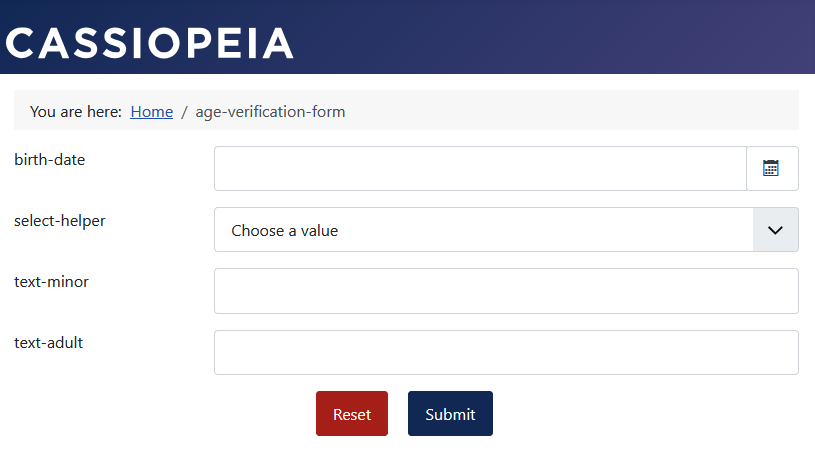
The form with configuration but without custom JavaScript code
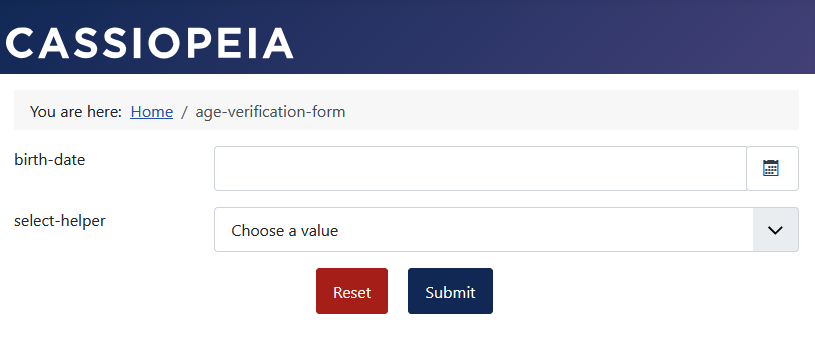
The control field is still visible. The options in the control field are still selected manually. Later, the JavaScript code will automatically select the options based on the chosen date of birth.
No value selected in the control field.
Neither the text-minor field nor the text-adult field is visible.
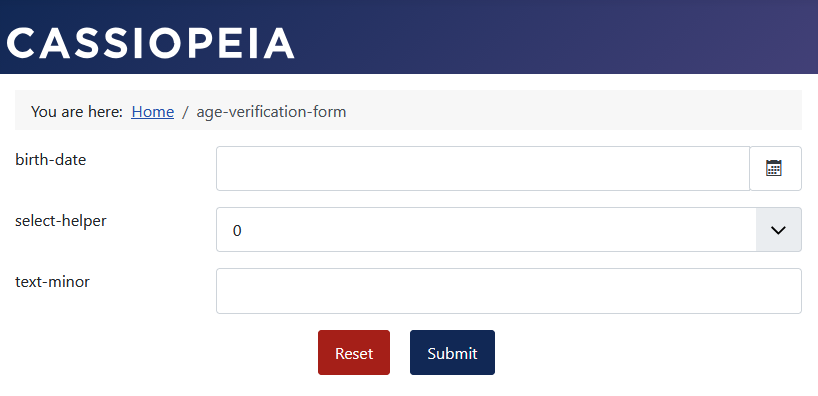
 Value 0 selected in the control field.
The text-minor field is visible.
Value 0 selected in the control field.
The text-minor field is visible.
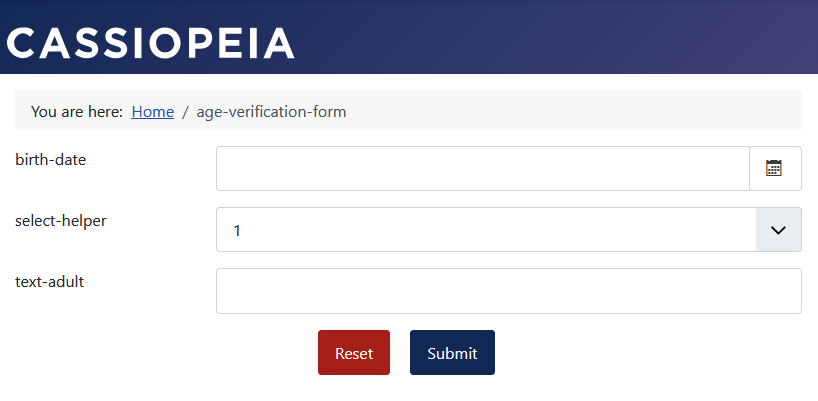
 Value 1 selected in the control field.
The text-adult field is visible.
Value 1 selected in the control field.
The text-adult field is visible.
The form with its own JavaScript code
The control field is hidden by the JavaScript code. The JavaScript code automatically selects the options in the control field based on the selected birth date.
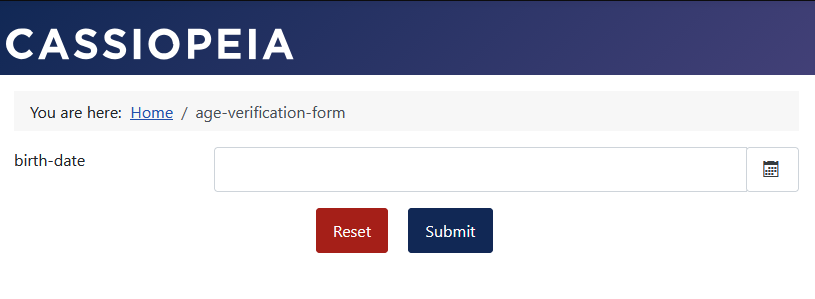
No date of birth selected.
Neither the text-minor field nor the text-adult field is visible.
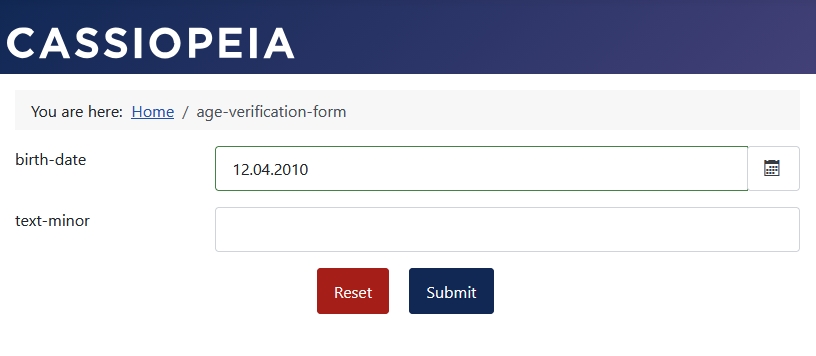
 A date of birth indicating a minor was selected.
The text-minor field is visible.
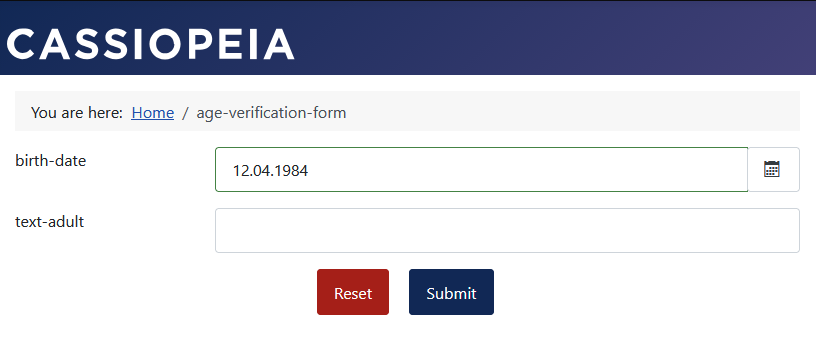
 A date of birth indicating an adult was selected.
The text-adult field is visible.
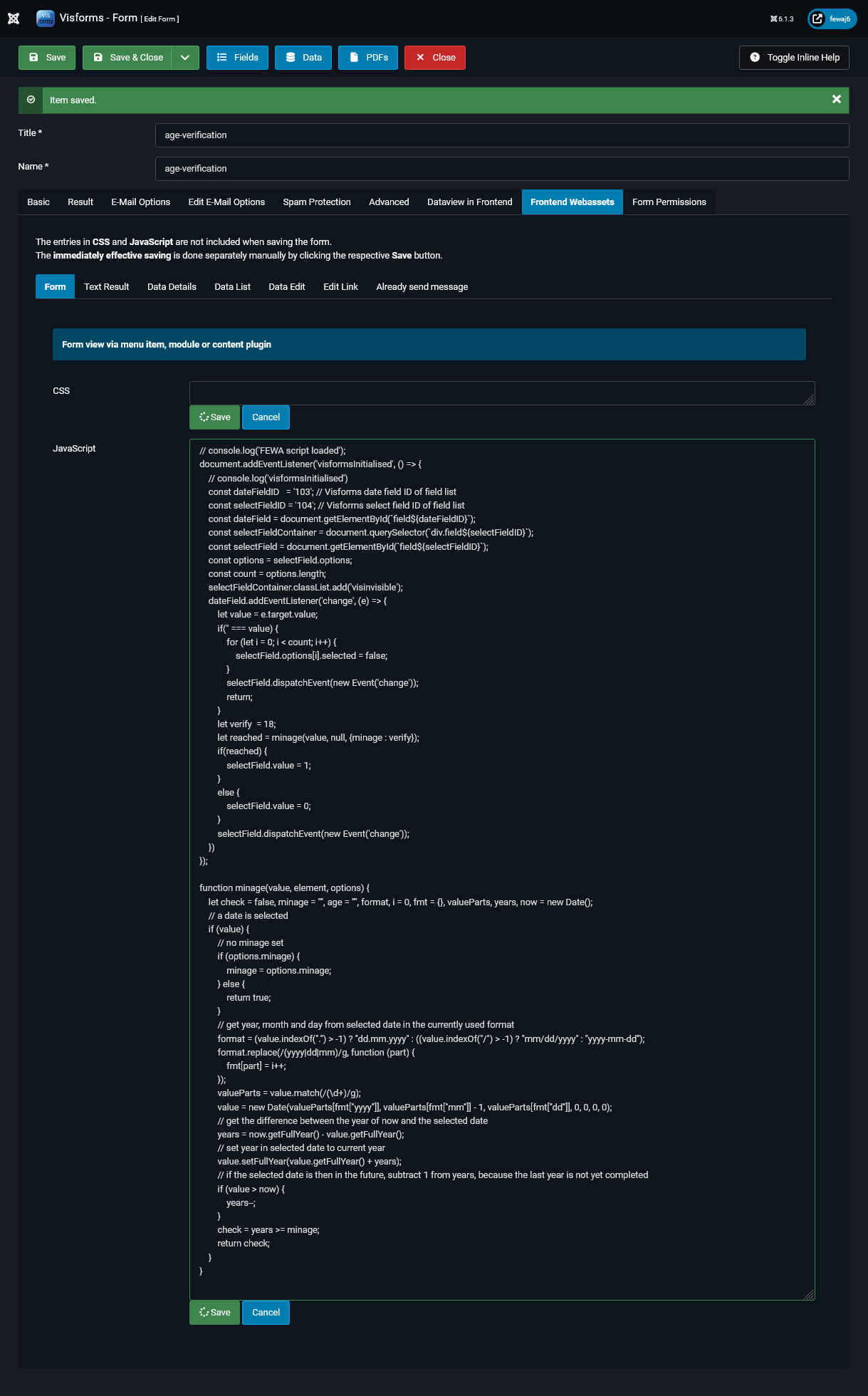
The form configuration
The JavaScript code is entered into the JavaScript option field within the form configuration—specifically under the Frontend Webassets tab and the Form sub-tab:
- Form configuration » Tab: Frontend Webassets » Sub-tab: Form
Parameter: JavaScript = The JavaScript code.
The JavaScript code
// console.log('FEWA script loaded');
document.addEventListener('visformsInitialised', () => {
    // console.log('visformsInitialised')
    const dateFieldID   = '103'; // Visforms date field ID of field list
    const selectFieldID = '104'; // Visforms select field ID of field list
    const dateField = document.getElementById(`field${dateFieldID}`);
    const selectFieldContainer = document.querySelector(`div.field${selectFieldID}`);
    const selectField = document.getElementById(`field${selectFieldID}`);
    const options = selectField.options;
    const count = options.length;
    selectFieldContainer.classList.add('visinvisible');
    dateField.addEventListener('change', (e) => {
        let value = e.target.value;
        if('' === value) {
            for (let i = 0; i < count; i++) {
                selectField.options[i].selected = false;
            }
            selectField.dispatchEvent(new Event('change'));
            return;
        }
        let verify  = 18;
        let reached = minage(value, null, {minage : verify});
        if(reached) {
            selectField.value = 1;
        }
        else {
            selectField.value = 0;
        }
        selectField.dispatchEvent(new Event('change'));
    })
});

function minage(value, element, options) {
    let check = false, minage = "", age = "", format, i = 0, fmt = {}, valueParts, years, now = new Date();
    // a date is selected
    if (value) {
        // no minage set
        if (options.minage) {
            minage = options.minage;
        } else {
            return true;
        }
        // get year, month and day from selected date in the currently used format
        format = (value.indexOf(".") > -1) ? "dd.mm.yyyy" : ((value.indexOf("/") > -1) ? "mm/dd/yyyy" : "yyyy-mm-dd");
        format.replace(/(yyyy|dd|mm)/g, function (part) {
            fmt[part] = i++;
        });
        valueParts = value.match(/(\d+)/g);
        value = new Date(valueParts[fmt["yyyy"]], valueParts[fmt["mm"]] - 1, valueParts[fmt["dd"]], 0, 0, 0, 0);
        // get the difference between the year of now and the selected date
        years = now.getFullYear() - value.getFullYear();
        // set year in selected date to current year
        value.setFullYear(value.getFullYear() + years);
        // if the selected date is then in the future, subtract 1 from years, because the last year is not yet completed
        if (value > now) {
            years--;
        }
        check = years >= minage;
        return check;
    }
}
The following adjustments to your situation are necessary:
- const dateFieldID = ‘103' The Visforms date field ID from the field list.
- const selectFieldID = ‘104' The Visforms listbox field ID from the field list (control field).
- let verify = 18 The age to be checked against.
No changes are necessary for checks regarding the age of majority or minority status.
The function ‘minage()’ is a direct copy from the Visforms code for validation. This function is included in the Visforms code from Visforms version 5.1.0.
The above JavaScript code
- Hides the listbox select-helper.
- Controls the listbox ‘select-helper’ according to the date specified in field birth-date.
Reset-Button with Query
Topics
- Only run code after the form has been initialized by Visforms.
- Only run the code after the HTML document has been initialized.
- Respond to the user’s button click.
- Address affected fields based on their field ID.
- Add an additional OnClick button handler to the Reset button.
- Place the additional OnClick button handler at the first position within the Reset button’s OnClick button handler list.
- Prompt the user to decide using a yes/no dialog.
- Respond to the user’s yes/no decision.
- Prevent the execution of all other OnClick button handlers of the Reset button.
Description
It is possible to add a reset button to the form. A reset button is added to the form by including a field with the field type Reset-Button. A field with the field type Reset-Button is automatically placed in the correct position within the form, alongside the form’s other buttons. A field with the field type Reset-Button derives its label text from the specified field label.
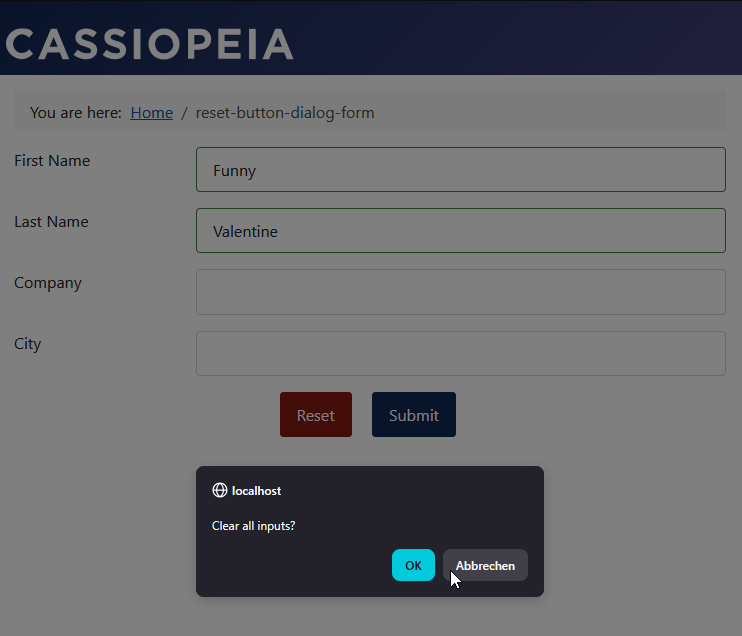
Clicking the reset button clears all previous entries. An additional prompt appears between clicking the reset button and the clearing of all previous entries. This additional prompt ensures that the user does not accidentally delete their entries.
The form
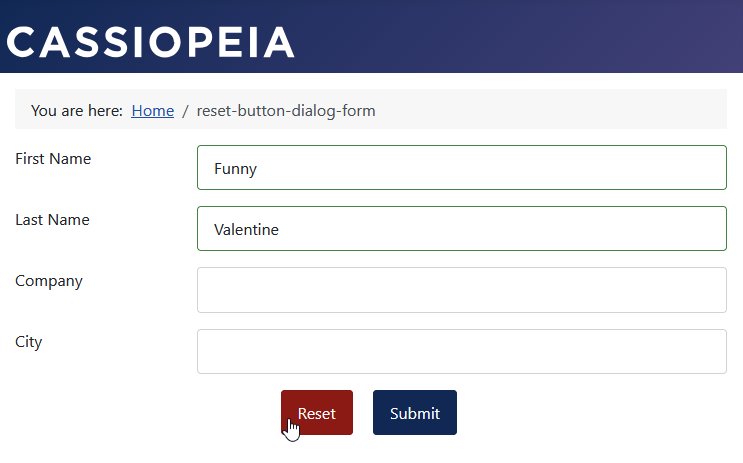
The user has entered data into the First Name and Last Name fields. Subsequently, the user clicks the Reset button, either intentionally or accidentally.
After clicking the Reset button, the user has the option to prevent their information from being reset. After clicking the Cancel button, the form appears without any changes to the information already entered. After clicking the OK button, all previous information is deleted and the empty form appears.
The JavaScript code
For this example, the JavaScript code uses the popular jQuery library for the following reason:
Achieving the same behavior using plain JavaScript involves a significant limitation:
Standard JavaScript does not provide direct access to the list of registered event listeners.
jQuery handles this via its own internal _data() functionality.
To solve this problem, the native addEventListener method would need to be extended (patched) to track registered functions in a custom array.
Implementing this solution in plain JavaScript would be disproportionately complex for this example.
Furthermore, there is no guarantee that other JavaScript code isn’t also registering events.
In such a scenario, alternative approaches—such as event capturing or cloning the element—would be required.
Note: Generally, no adjustments to your specific setup are required for this example code. The reset button is identified by its input type, regardless of its field ID.
// console.log('FEWA script loaded');
document.addEventListener('visformsInitialised', () => {
    // console.log('visformsInitialised')
    // timeout: make sure all foreign event listener handlers are attached
    window.setTimeout(function () {
        // button click handler has to be at the top of click event listener list to get called first
        // add own event handler as last in the event listener list
        const button = jQuery("input[id^='field'][type='reset']");
        button.on('click', function(event) {
            if (!confirm('Clear all inputs?')) {
                event.stopImmediatePropagation();
                return false;
            }
        });
        // move own event handler from last in list to top of the list
        let eventList = jQuery._data(button[0], "events");
        eventList.click.unshift(eventList.click.pop());
    }, 500);
});