Configuring the progress indicator
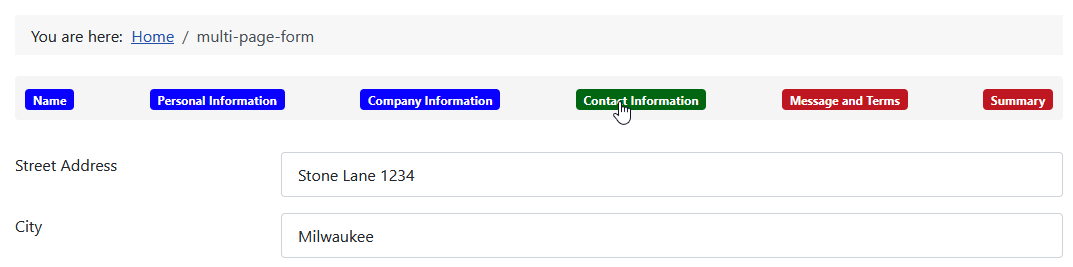
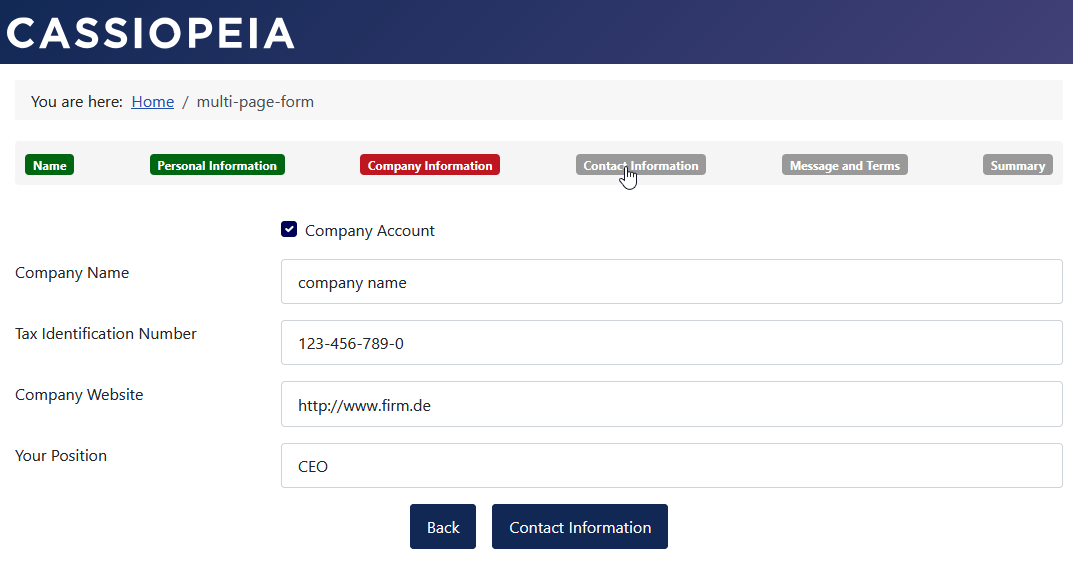
A progress indicator in the form of progress tabs can be displayed above the form.
If the progress indicator is enabled, clicking on the progress tabs allows users to navigate directly to specific pages.
The following settings are available for the progress tabs:
- Custom labels,
- Automatic labels,
- Size automatically adjusted to the label text width,
- Background color,
- Font color.
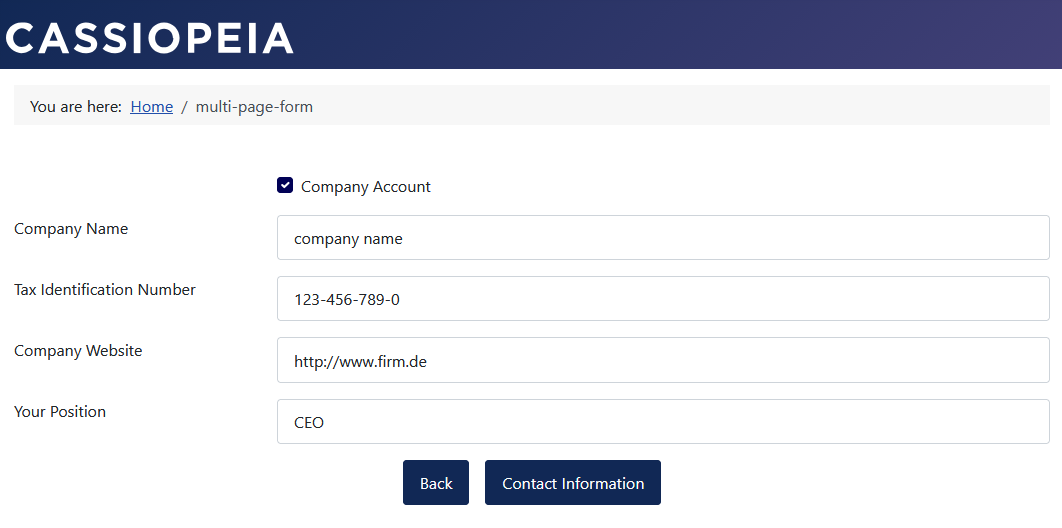
Without progress indicator
The default setting for the multi-page form is to have the progress indicator disabled. Users can navigate through all pages but do not necessarily have an overview of which pages have already been edited or how many remain. This is not strictly necessary for forms with only a few pages.
- Form configuration » Tab: Advanced » Sub-tab: Layout
Group: Progress indicator » Parameter: Show progress = “No”.

With Progress Indicator
The progress indicator must be enabled to be visible.
Note: For forms with multiple pages, it is advisable to enable the progress indicator to provide users with a better overview and an indication of how many pages remain to be edited.
- Form Configuration » Tab: Advanced » Sub-tab: Layout
Group: Progress Indicator » Parameter: Show progress = “Yes”.
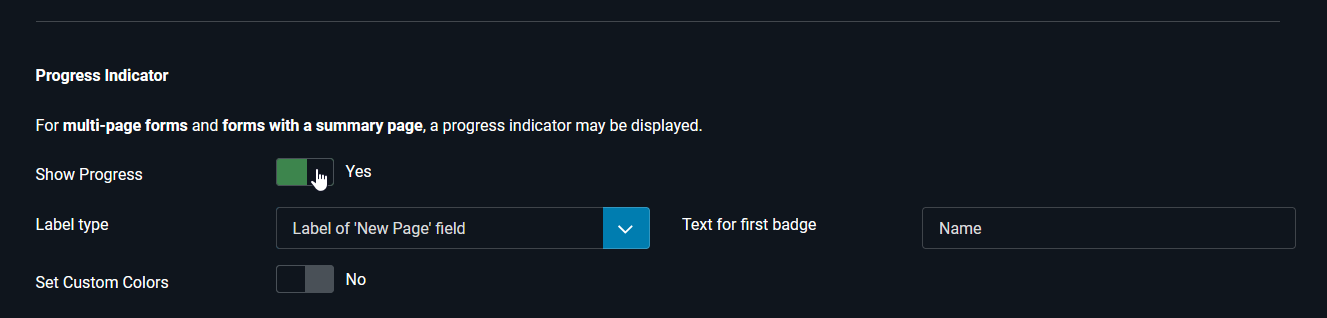
Once the progress indicator is enabled, additional parameters appear:
- Form Configuration » Tab: Advanced » Sub-tab: Layout » Group: Progress Indicator
- Parameter: Label type
Determines the text for the progress indicator tabs - Fixed text: Step x of y
- Fixed text (compact): Step number
- Label of the ‘New Page’ field
- Parameter: Text for first tab
When Label of the ‘New Page’ field is selected, the fact that the first page is not created via a dedicated ‘New Page’ field comes into play.
Consequently, there is no option to define the tab text via that field.
In this case, the text from this parameter is used as the tab text, if specified.
The default text for the first tab is First page. - Parameter: Set custom colors
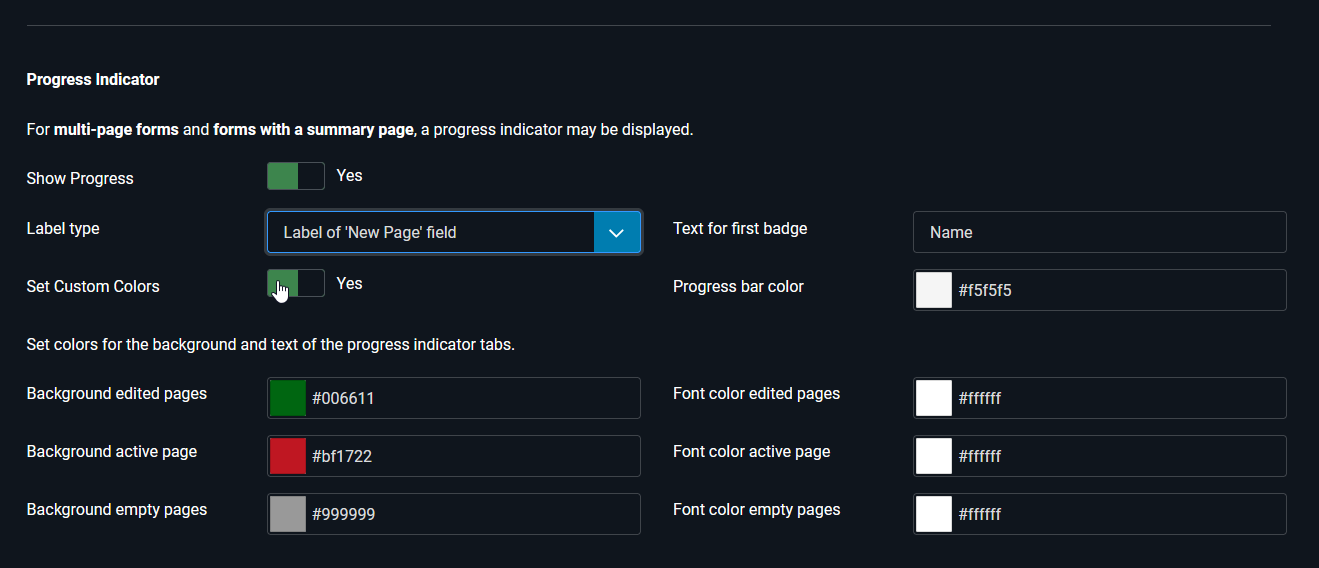
If this parameter is set to “Yes,” additional parameters appear for defining custom colors for the tab background and text.
- Parameter: Label type
Progress Indicator
Navigation via the Progress Indicator
If the progress indicator is enabled, clicking on its tabs allows you to access the individual pages directly.
Direct access to individual pages is not always possible; it is automatically prevented if, for example, mandatory fields on preceding pages remain unfilled or contain errors.
In such cases, direct access is limited to the first page affected by the issue.
The same applies to standard page navigation using the buttons at the bottom of each page.
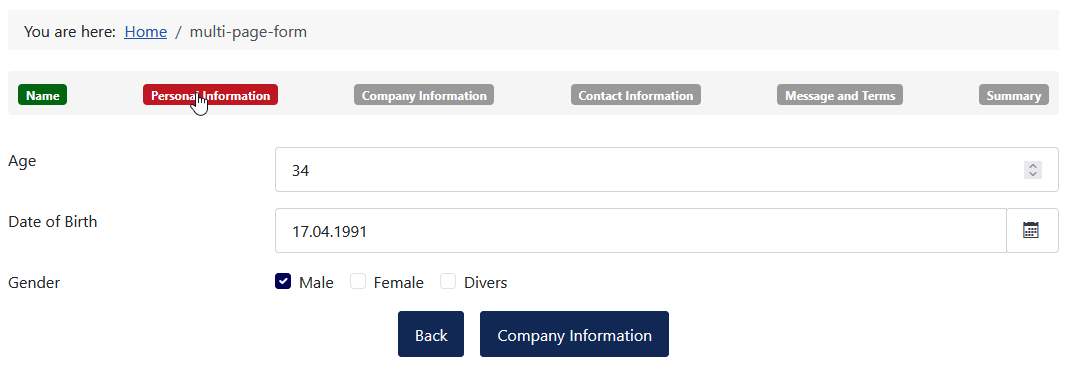
Progress Indicator Field Label
The progress indicator tabs can display the field label of the “New Page” field.
Displaying the field label makes it possible to provide the group of inputs on a page with a heading-like label, making its purpose self-explanatory.
A factor here is that the first page is not generated by a dedicated “New Page” field.
The Text for first tab parameter resolves this by allowing you to specify custom text for the first tab.
The default text for the first tab is First Page.
- Form Configuration » Tab: Advanced » Sub-tab: Layout
Group: Progress Indicator » Parameter: Label type = “‘New Page’ field label”.
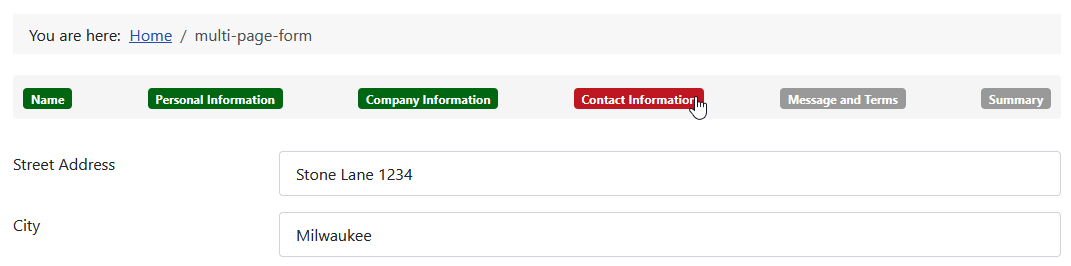
Progress indicator: Step x of y
With this setting, the progress indicator tabs are generated automatically.
The labels in the “New Page” field no longer affect the display.
- Form configuration » Tab: Advanced » Sub-tab: Layout
Group: Progress indicator » Parameter: Label type = “Fixed text: Step x of y”.
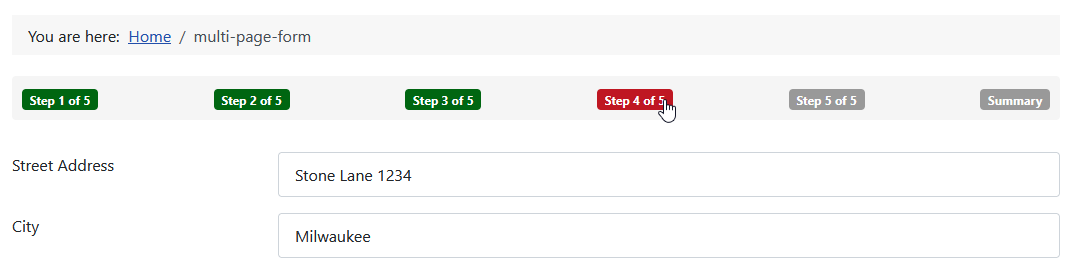
Progress Indicator: Step x
With this setting, the progress indicator tabs are generated automatically.
The labels from the “New Page” field no longer affect the display.
This setting is particularly space-efficient and is especially useful for the small screens of mobile devices.
- Form Configuration » Tab: Advanced » Sub-tab: Layout
Group: Progress Indicator » Parameter: Label Type = “Fixed text: Step x of y”.
Large Screen
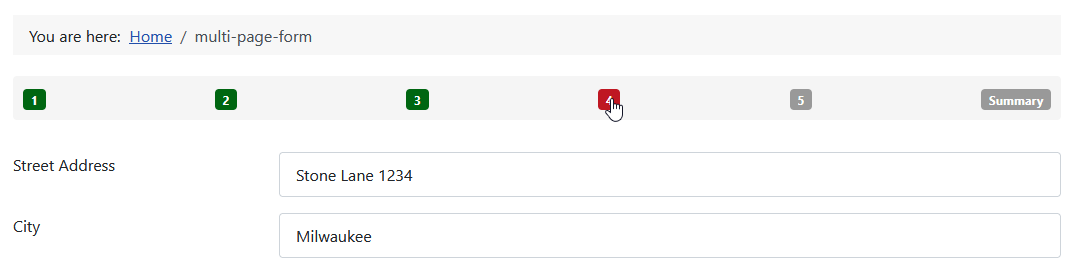
Small Screen
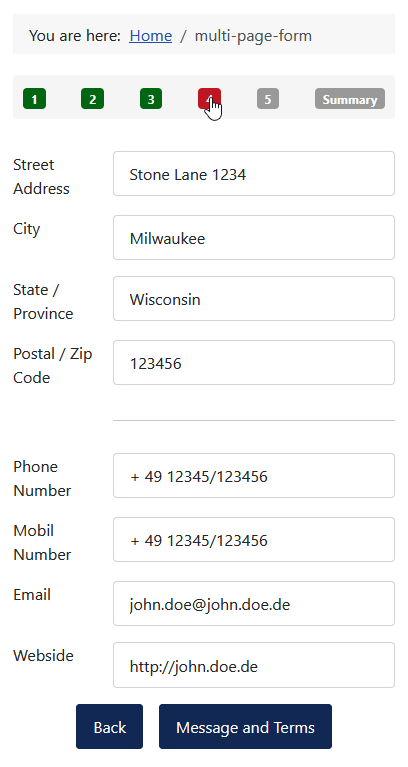
Set Custom Colors
Accessibility
Contrast ratios are important components of form accessibility.
The preset colors in Visforms support accessibility and meet international standards.
Even the individually selected colors must ensure sufficient contrast between the foreground and background colors.
Read more about this in the sections
Visforms and Accessibility
and
Creating Accessible Forms.
Default colors
Visforms has default settings for the background color and font color of the various tab types, ensuring sufficient contrast between the foreground color and the background color.
Custom colors
Note: Custom colors must ensure sufficient contrast between the foreground color and the background color.
Visforms offers the ability to individually set the background color and font color of the various tab types.
There are three different tab types:
- Tabs for all edited pages that already contain entries made by the user.
- Tabs for the active page that the user sees.
- Tabs for all empty pages that have not yet been edited.
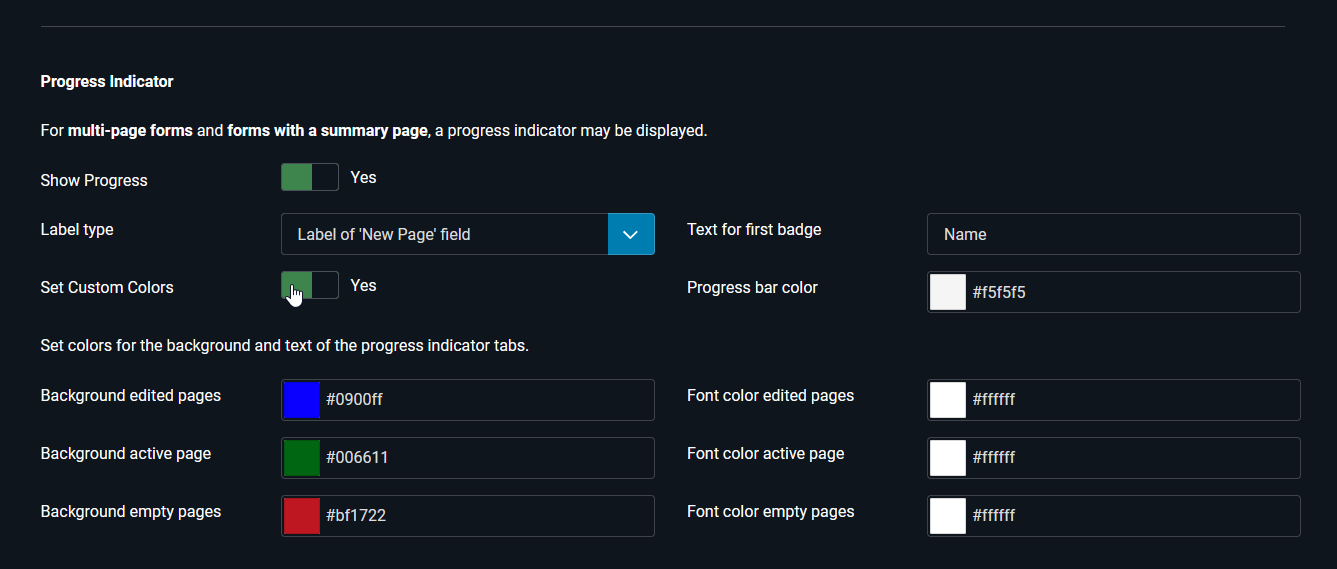
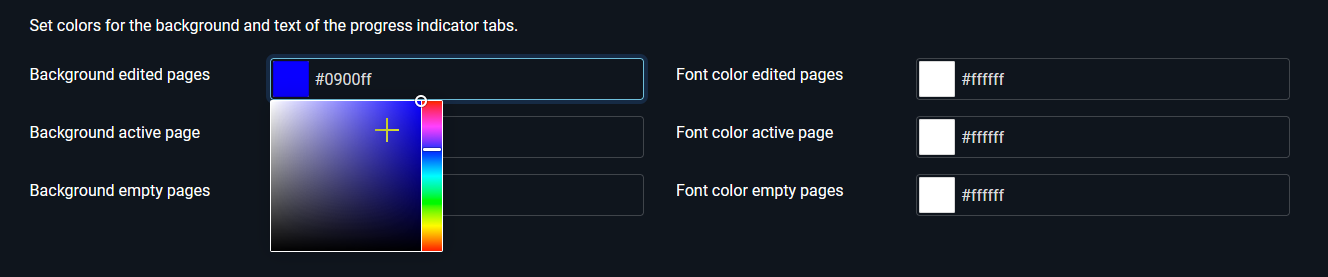
Color selection can be done in the following two ways:
- Directly entering the RGB color value in hexadecimal notation: e.g., #006611.
- By clicking the mouse in the open color selection dialog.
The color selection dialog opens automatically when the field receives input focus via keyboard or mouse click.
The rightmost optional tab Summary contains the Summary page. Read more about this in the section Summary Page .