Menu configuration
Note: These features are part of the Visforms Subscription and are not included in the free Visforms version.
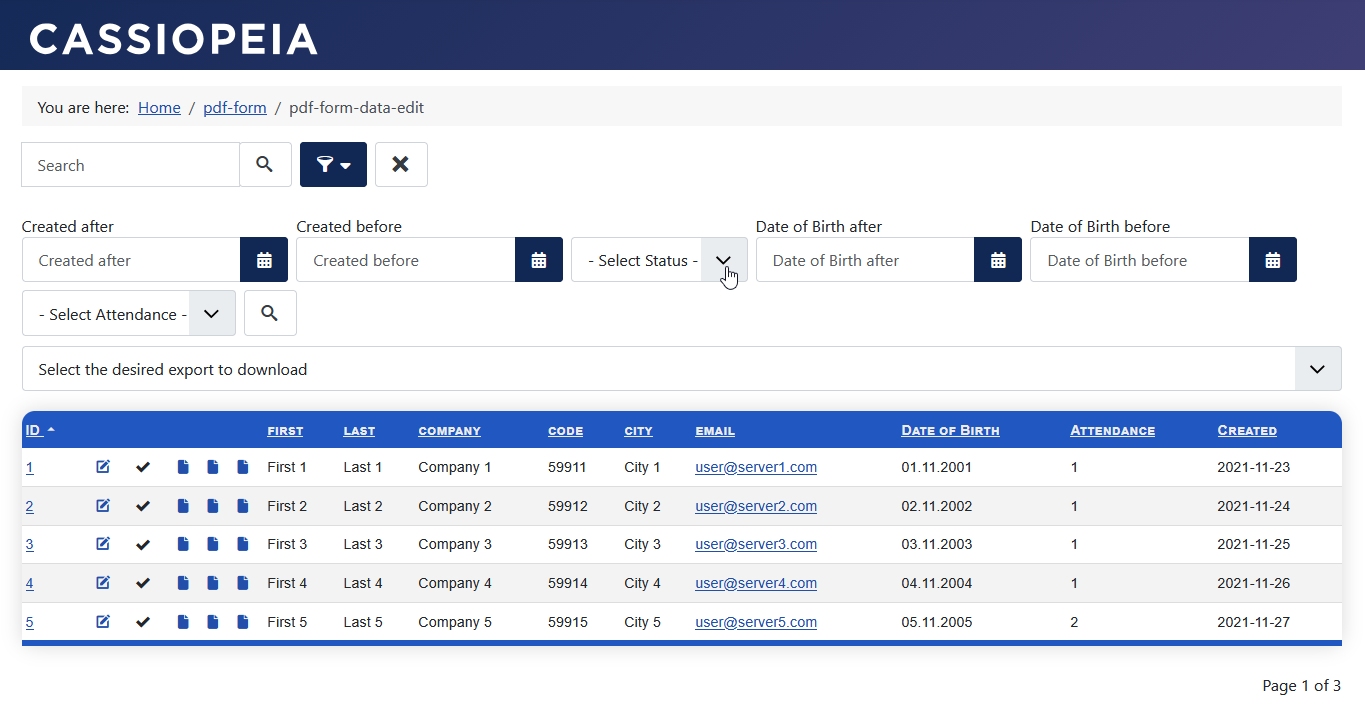
A search bar with search filters can be displayed for the list view of the form data in the front end.
The search bar is then located directly above the data list.
The search bar with the included search filters offers extensive options for filtering and sorting transmitted data
To do this, go to the menu management and open a menu entry of the following types:
- Visforms » Form Data.
- Visforms » Data view with edit link.
- Visforms » My Transmissions.
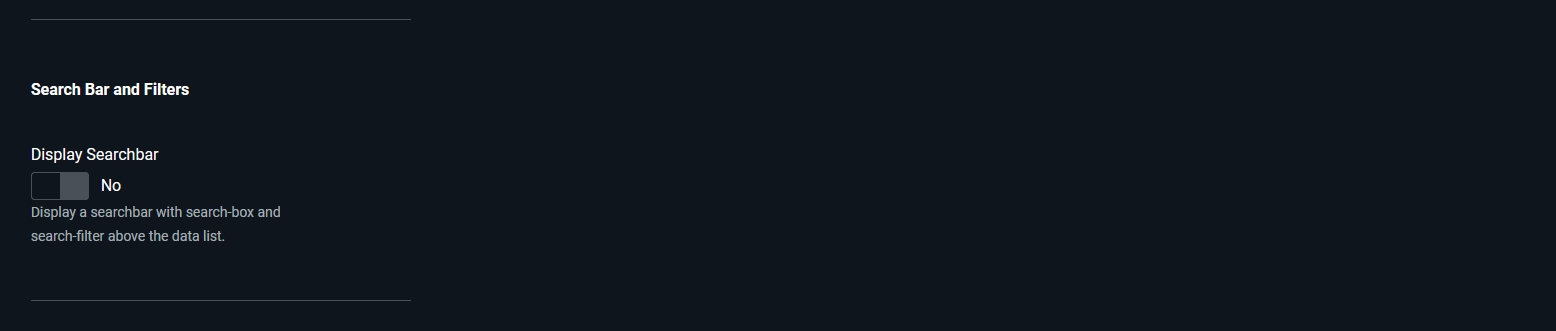
Show Search Bar
Within the menu configurations for these three menu types, you will find the option to enable the search bar.
Apply the following setting to display the search filters in the data view:
- Menu Configuration » Tab: Form Data Display
Group: Search Bar and Filters » Parameter: Show Search Bar = ‘Yes’
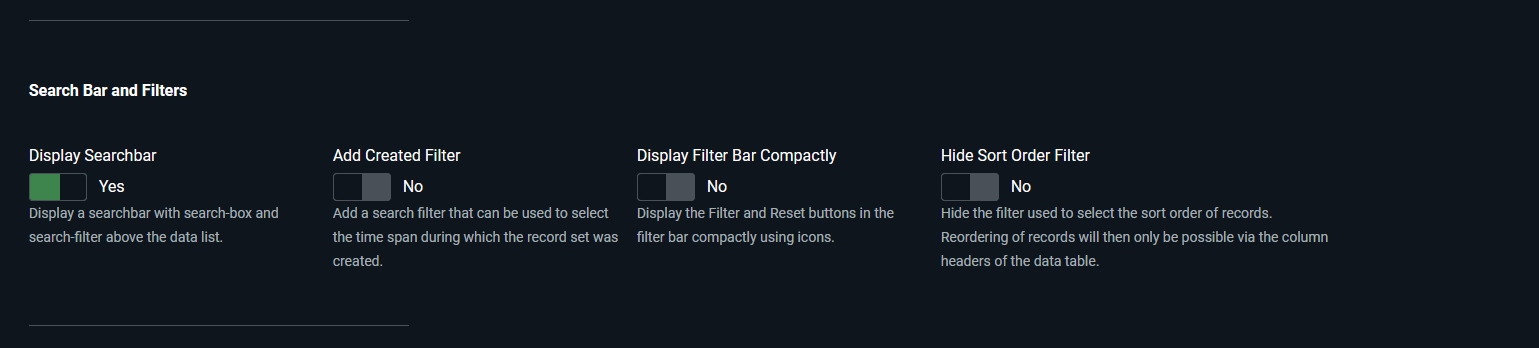
When the search bar is enabled, three additional options appear for controlling its display (see also below):
- Include ‘Created’ Filter
- Display Filter Bar Compactly
- Hide Sort Order Filter
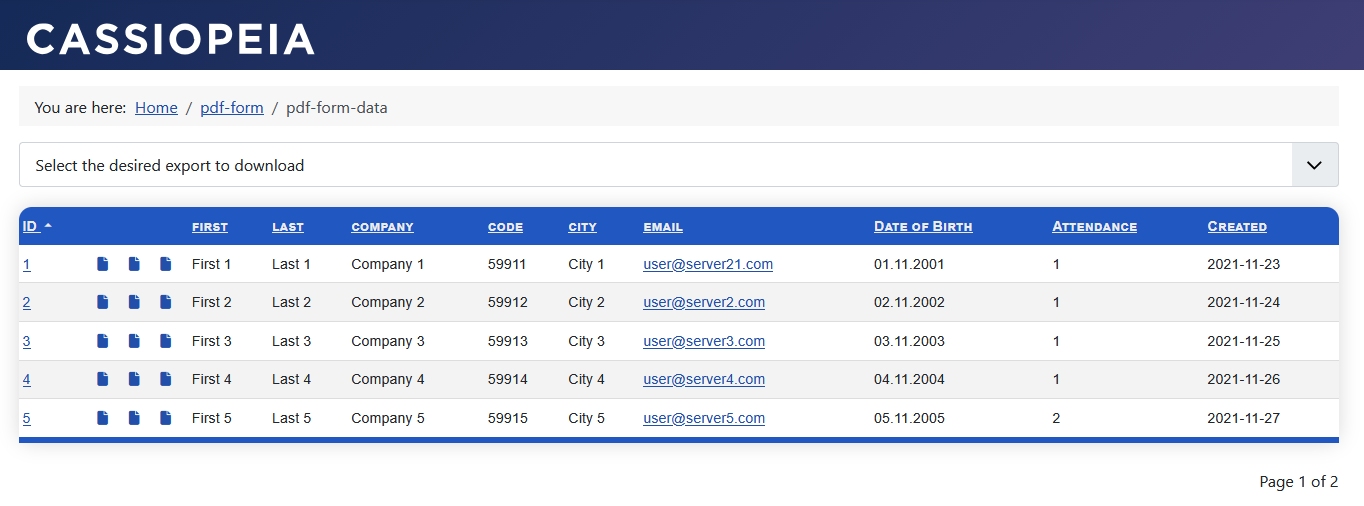
Note: For the examples of the search bar options, PDF and CSV file export capabilities are also enabled.
Display of form data without a search bar.
Note: In addition to the column headers, the sorting order can be configured via a separate listbox. This sorting order listbox is part of the search bar; it is treated as a filter and configured within that section.
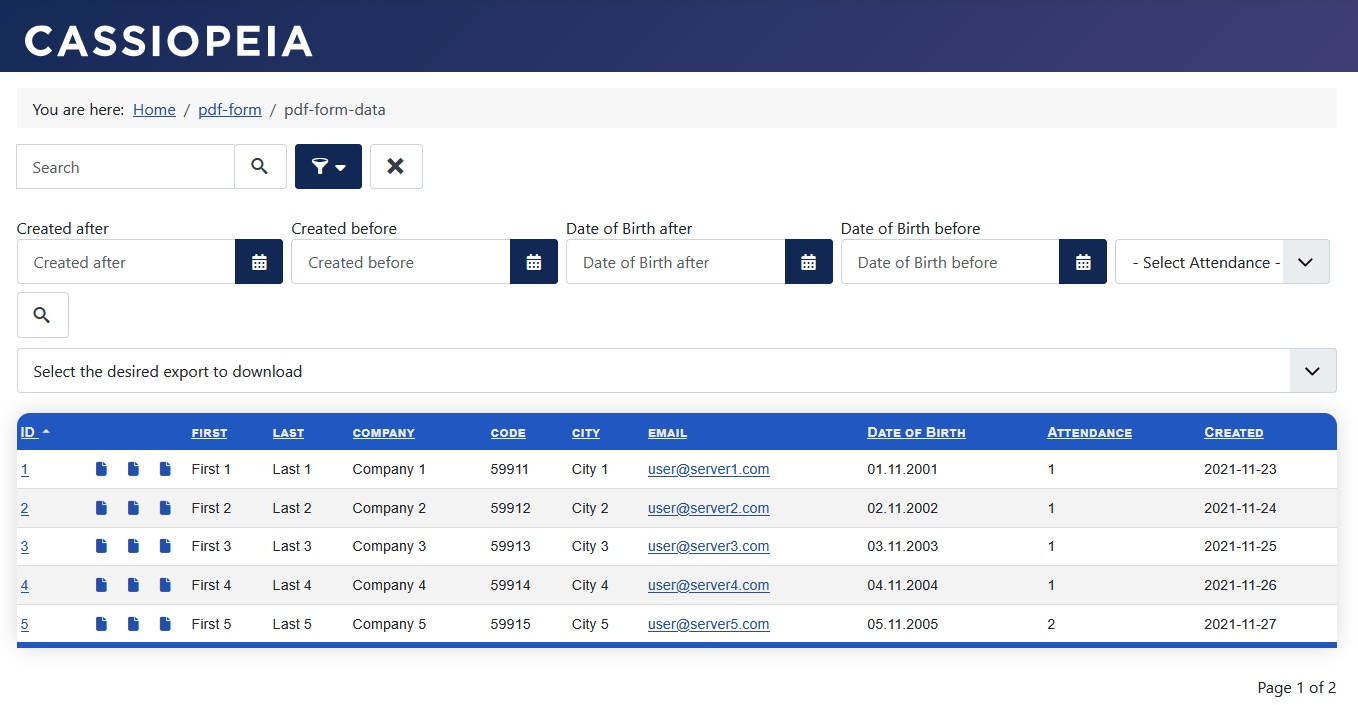
Display of form data with the search bar shown.
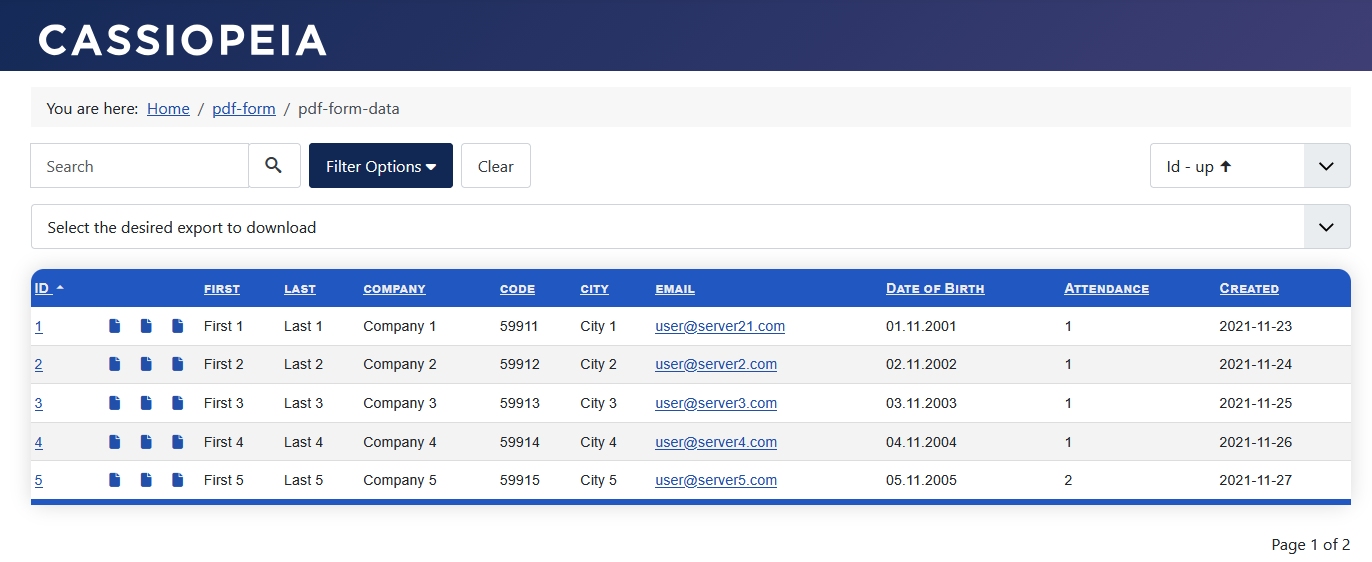
Hide Sort Order Filter
Make the following setting to hide the standalone filter listbox for the sort order in the Data View:
- Menu Configuration » Tab: Form Data Display
Group: Search Bar and Filters » Parameter: Hide Sort Order Filter = ‘No’
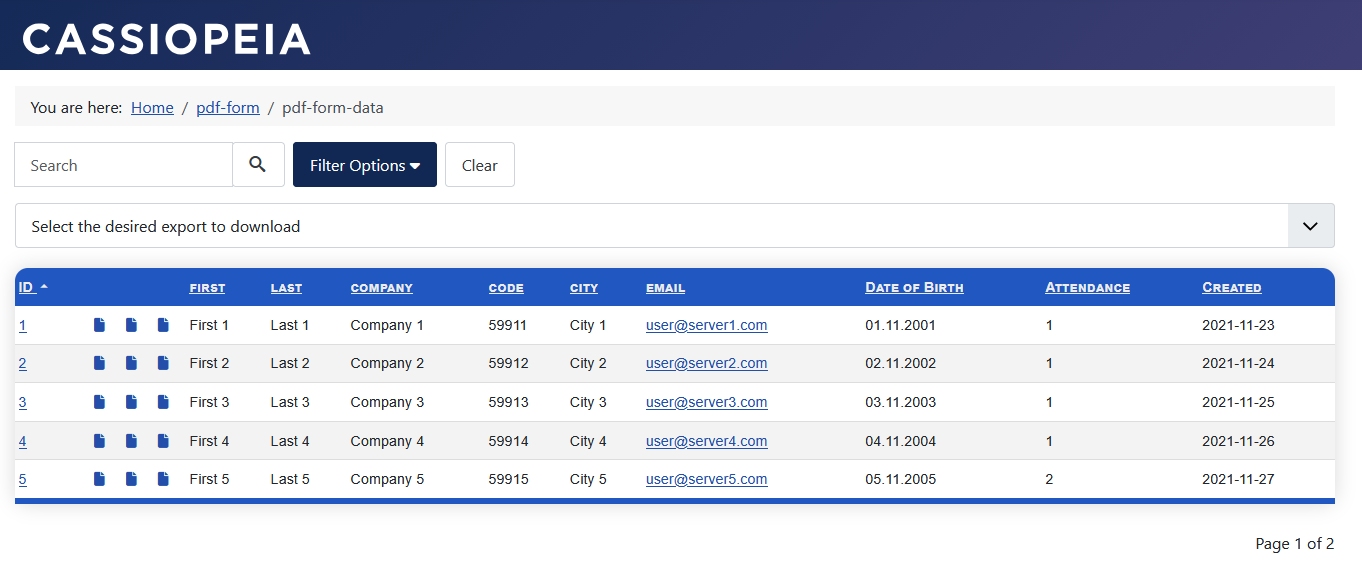
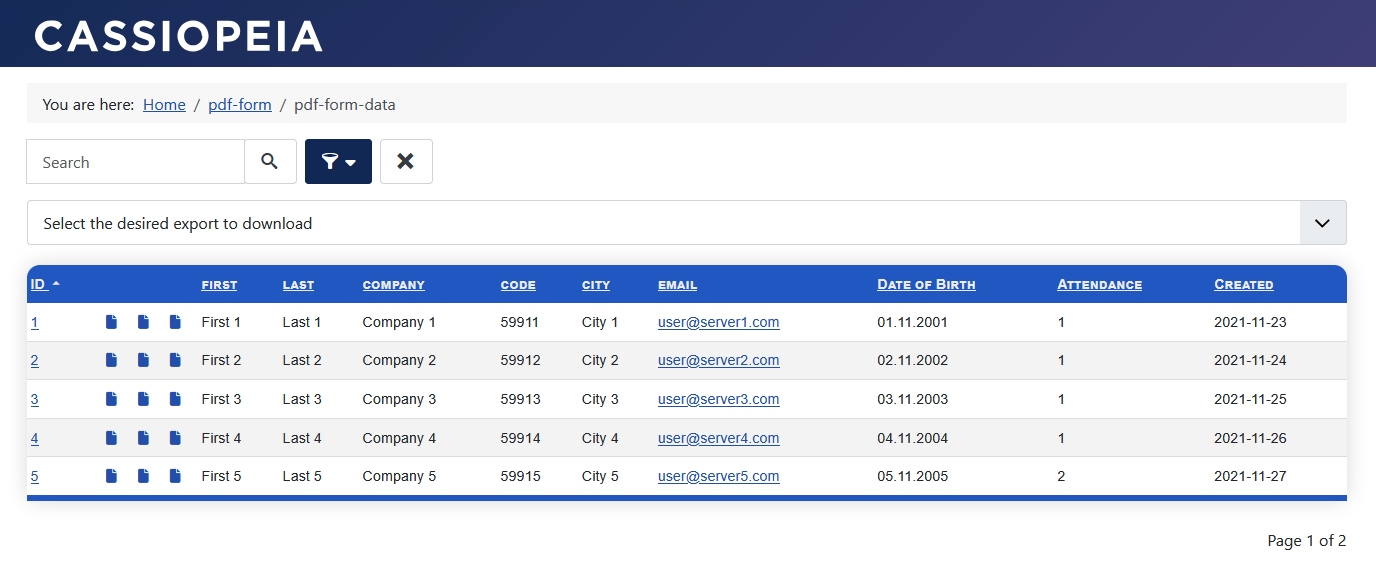
Display Filter Bars Compactly
Configure the following setting to display the filter bars compactly within the data view:
- Menu Configuration » Tab: Form Data Display
Group: Search Bar and Filters » Parameter: Display Filter Bars Compactly = ‘Yes’
Filter Options
- When the search filter menu is expanded, the search filters explicitly enabled for the search bar within the field configuration—specifically for the respective field—are displayed.
Find out more in the section Field Configuration. - Date fields feature two calendar selectors for defining a specific time period.
- The text search field searches across all text fields and additionally supports text searches within a single specific field.
Find out more in the section Text Search in a Single Field.
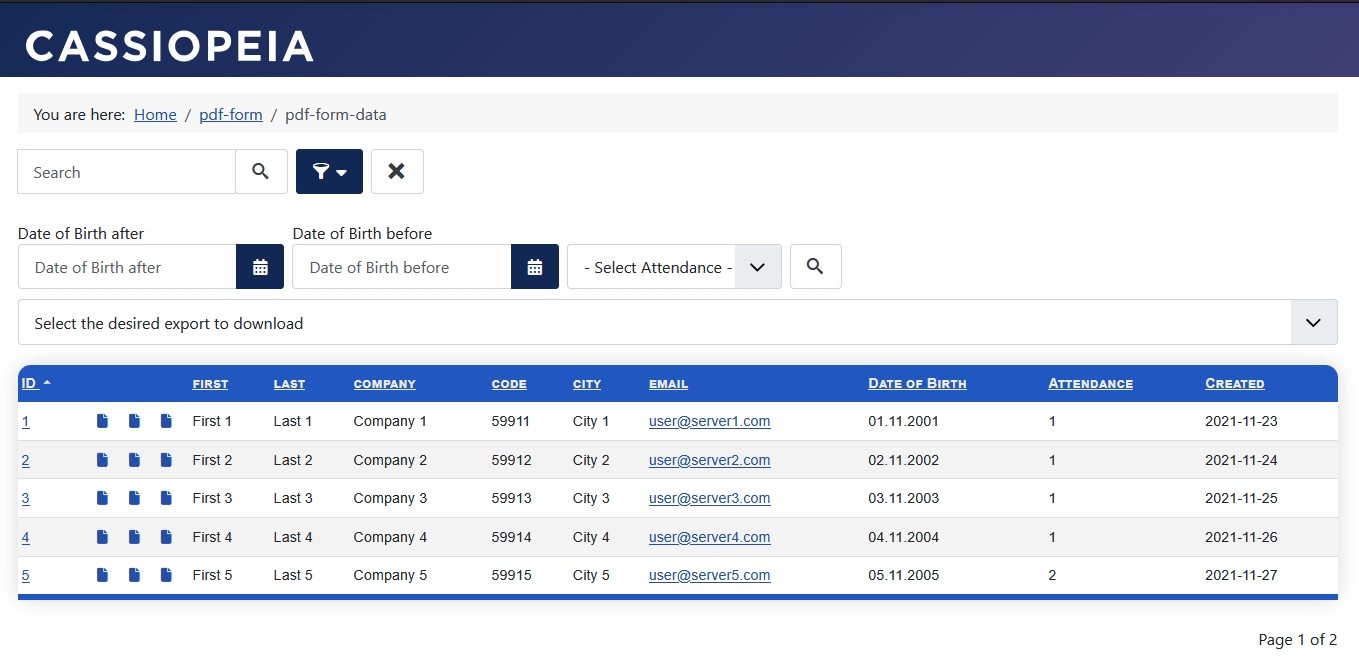
Insert “Created” Filter
Date fields feature two calendar selectors for defining a specific time range.
Configure the following setting to display the filter for the record creation date within the data view:
- Menu Configuration » Tab: Form Data Display
Group: Search Bar and Filters » Parameter: Insert “Created” Filter = ‘Yes’
Note: If you activate the search filter for Created in the menu configuration, this search filter will always be displayed in the frontend. If the Created search filter is activated, the menu configuration overwrites the setting in the form configuration for the display and search-ability of the Date overhead field.
Status Filter for Data Editing
In the Data Editing view, an optional additional search filter is available for the publication status of the records.
When the Status Filter for Data Editing is enabled, this search filter appears whenever the user possesses the necessary permissions.
Configure the following setting to enable the user-permission-dependent display of the publication status filter within the Data Editing view:
- Menu Configuration » Tab: Form Data Display
Group: Search Bar and Filters » Parameter: Status Filter for Data Editing = ‘Yes’