Limit the maximum number of transfers
Note: These features are part of the Visforms Subscription and are not included in the free Visforms version.
- Simply limit the form submission to a maximum number of submissions.
- Furthermore, limit the form submission
- To a maximum number of user inputs such as quantities.
- To a maximum number of option selections.
- To combinations of option selections and quantity inputs.
- Through arbitrary calculations using custom SQL statements.
- Configure the form behavior precisely in case of an exceedance.
- Define form messages individually in case of an exceedance.
- Using Visforms Placeholder for current user input is possible.
- The Visforms - Limit Submission Count plugin must be activated beforehand.
System Settings - Activate plugin in plugin manager
Note: Please make sure you have installed your Visforms Subscription.
You must activate the plugin in the Plugin Manager before you can use its features.
To do this, go to the “System” menu entry in the administration of your Joomla installation and then to the “Plugins” entry on the “Manage” tile.
Find the plugin entry with the name Visforms - Limit transfers.
Note: To do this, use the search filter above the plugin list.
The plugin is activated when you see a green check mark in the status column.
It is deactivated when there is a gray circle with a white X in this place.
In this case, click once on the gray circle to activate the plugin.
Configure the Maximum Number
Note: All options for the maximum number of submissions are set in the form configuration.
Note: Enable the inline help initially. It contains comprehensive and largely self-explanatory descriptions of all settings for this feature. In this case, with reference to the example below from this documentation.
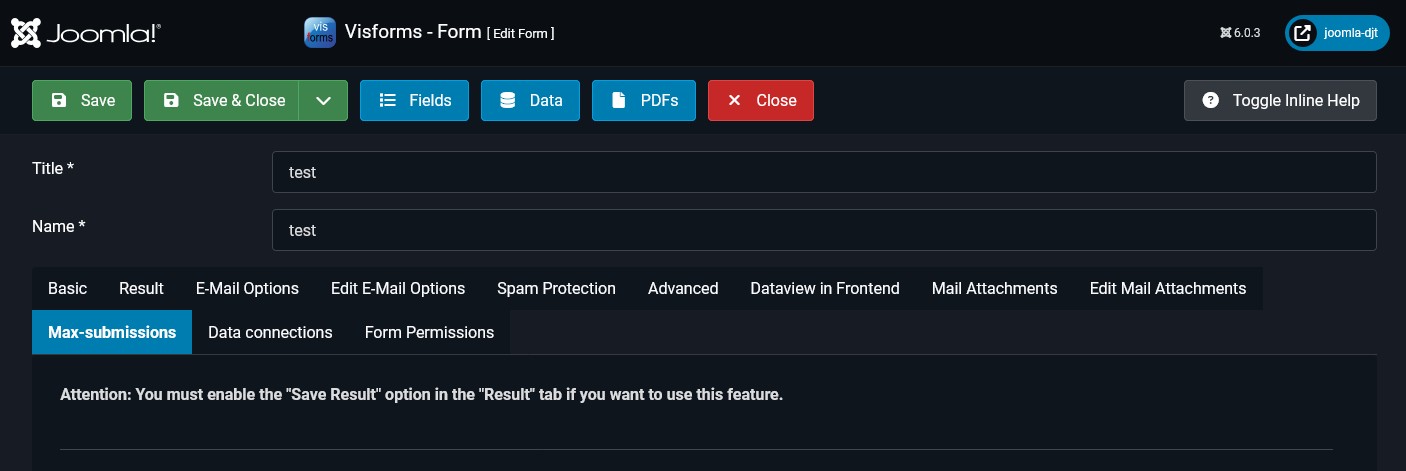
The “Visforms - Limit Number of Submissions” plugin was designed so that you can configure the number of submissions options separately for each form. To do this, the plugin creates a new “Maximum Submission” tab in the form configuration.
In your website’s administration panel, go to Components » Visforms and open the edit view for the form for which you want to limit the maximum number of submissions. Click on the “Maximum Submission” tab.
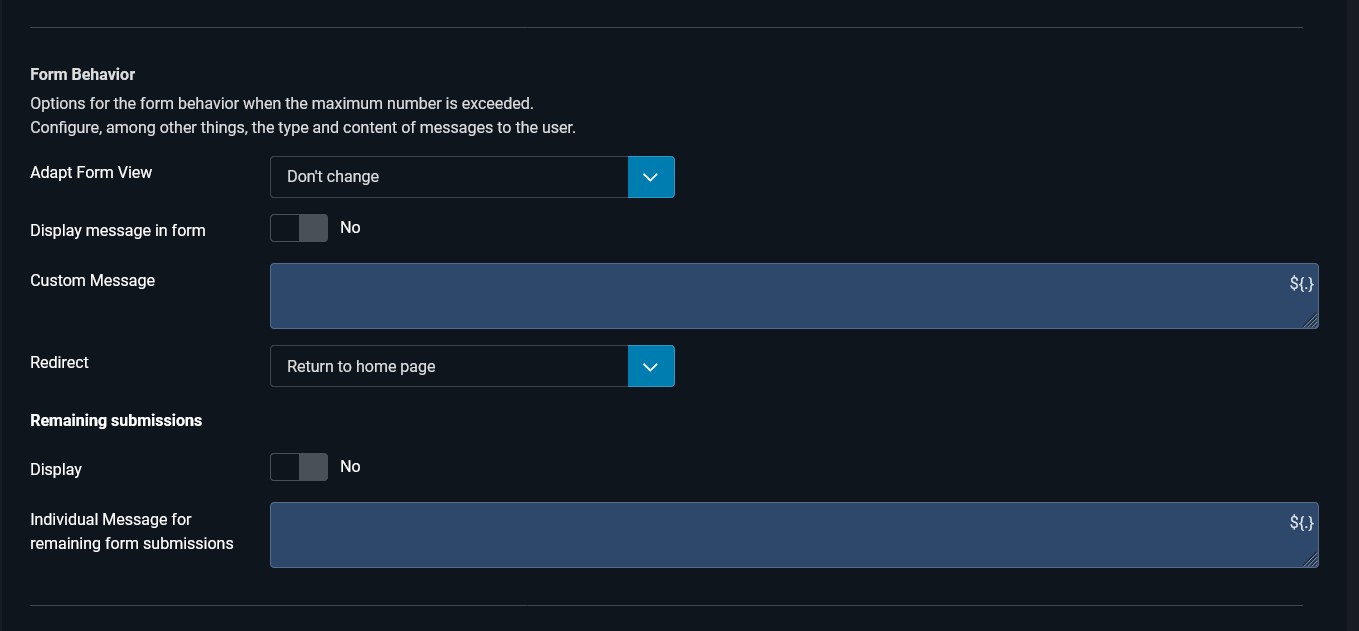
Define Form Behavior
In the upper section of the configuration, define the desired form behavior for when the maximum number of submissions is reached.
The options for adjusting the form behavior when the maximum number is reached are largely self-explanatory.
Select “Adapt Form View”
The available options for adjusting the form view when the maximum number is reached are largely self-explanatory:
- Do not change the form.
- Remove the submit button.
- Do not display the form.
Select “Redirect”
The two options for redirecting after form submission and reaching the maximum number are largely self-explanatory:
- Return to the start page.
- Follow the form settings.
Display Texts
Message in Form
A standard message can be displayed if the available number of submissions is less than the number of new submissions. To display the standard message to the user, select the following setting:
- Parameter Show message in form = ‘Yes’.
The standard message reads as follows:
‘Unfortunately, the maximum number of submissions for this form has been reached. You cannot submit the form.’
A custom message can also be displayed if the available number of submissions is less than the number of new submissions. To display a custom message to the user, select the following two settings:
- Parameter Show message in form = ‘Yes’.
- Parameter Individual Message = ‘I’m writing my individual message here. There are only %d registrations left.’
Like many other input fields, the Individual Message input field also has the indicator character ‘${.}’ in its upper right corner. The indicator character ‘${.}’ means that Visforms Placeholder can be used in this input field. This allows the individual message text to be further customized, for example, with current user information.
Text examples with Visforms Placeholder
- Individual message (see cinema example below for details): ‘The selected movie ‘${movie}’ has only %d reservable seats left.’
- Example use of user information in the message text using the framework object
<span class="code">user</span>:- ‘user id = ${user:id}, name = ${user:name}, username = ${user:username}, email = ${user:email}, registerDate = ${user:registerDate}, lastvisitDate = ${user:lastvisitDate}, groups = ${user:groups}.’
- ‘Hello ${user:name}, the selected movie ‘${movie}’ has only %d reservable seats left.’
Note: The part with %d will be replaced with the current number of available seats.
Remaining Form Submissions
The form can display the number of remaining transfers before submission.
To display the number of remaining transfers in the form, select the following setting:
- Parameter Show = ‘Yes’.
The default message is:
‘Remaining transfers: %d.’
A custom message for the number of remaining transfers can be displayed in the form.
To display a custom message, select the following two settings:
- Parameter Show = ‘Yes’.
- Parameter Custom Text = ‘My custom text for the number of remaining transfers: %d’.
Note: The %d part will be replaced with the current number of remaining transfers.
For technical reasons, it is not possible to display an early notification of the number of remaining transfers before submitting the form in the following case:
- Parameter Method = ‘Free Calculation’.
- Parameter Count from List = ‘Yes’
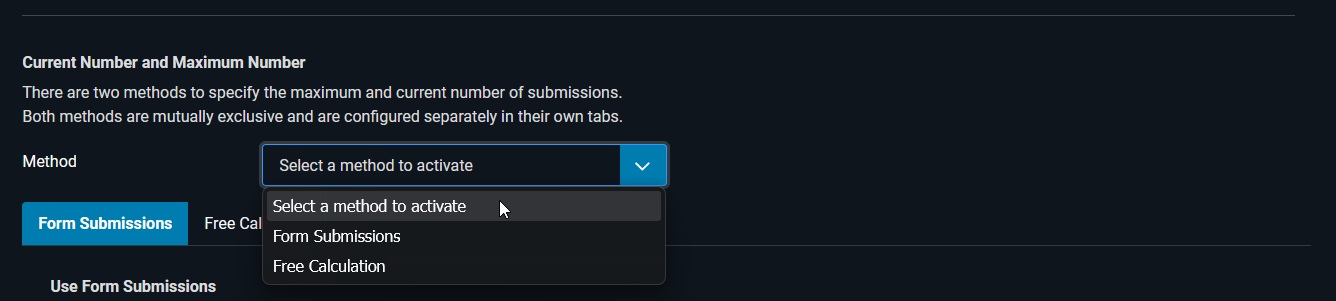
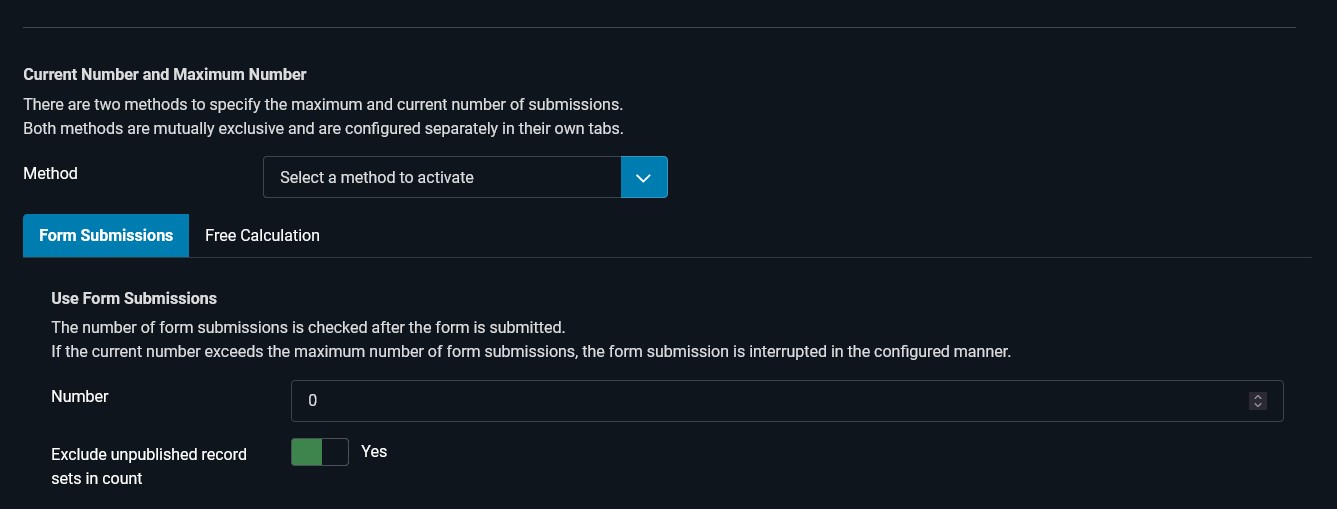
Current Number and Maximum Number
In the lower section of the configuration, define the method for determining:
- the current number,
- the maximum number.
Various methods and options are available for determining the counts:
- Form Submissions Method:
This method is the simplest way to determine the counts.- Current Number: This is directly derived from the number of completed form submissions.
- Maximum Number: This is entered as a fixed number directly in the configuration.
- Free Calculation Method:
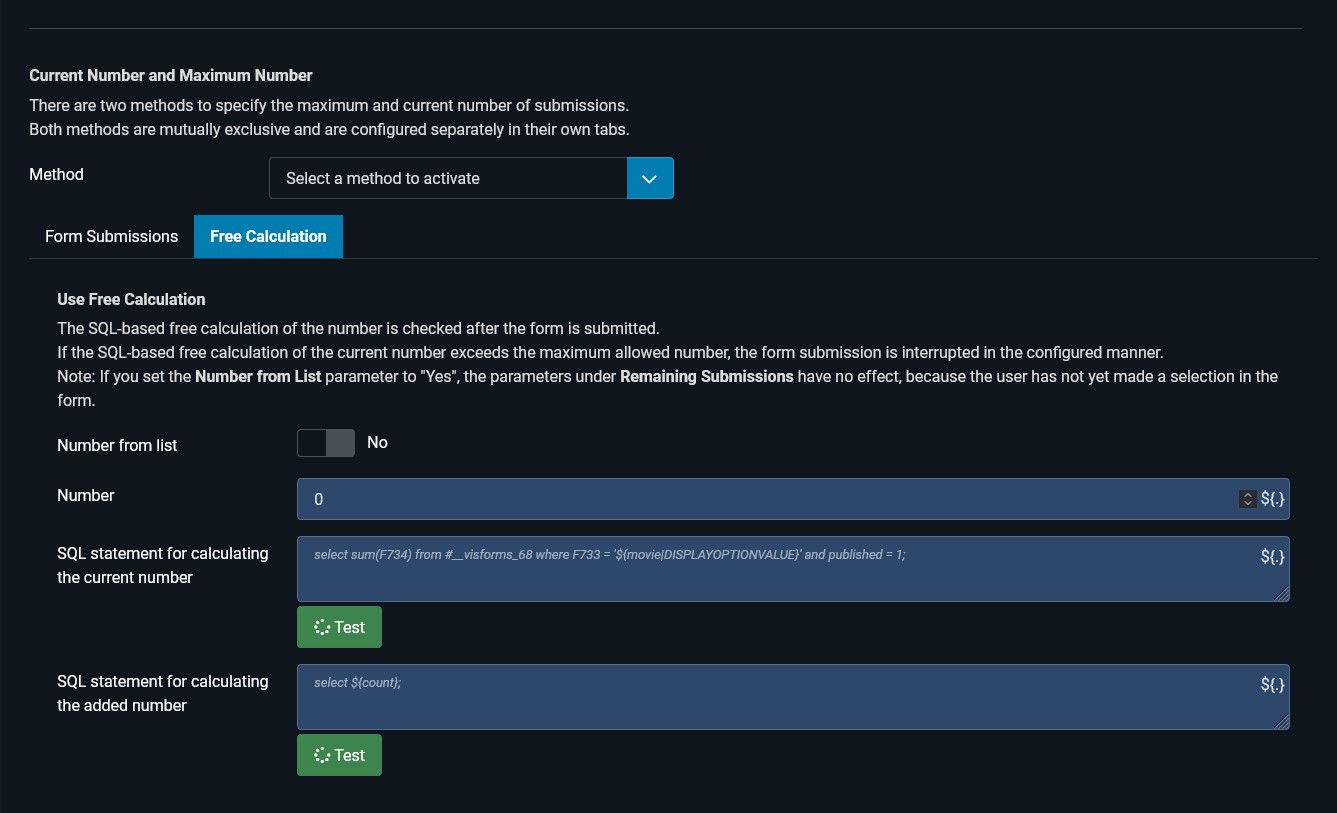
This method offers more options in two steps due to its high flexibility in determining the counts.- Count from List Option = “No”
In the first step, this method allows for a free, individual calculation of both the maximum and current numbers.
This is useful, for example, if you don’t want to simply include all previous submissions directly in the calculation of the current number.
This allows, for example, individual form options to have different weightings in determining the current number. - Option Count from list = “Yes”
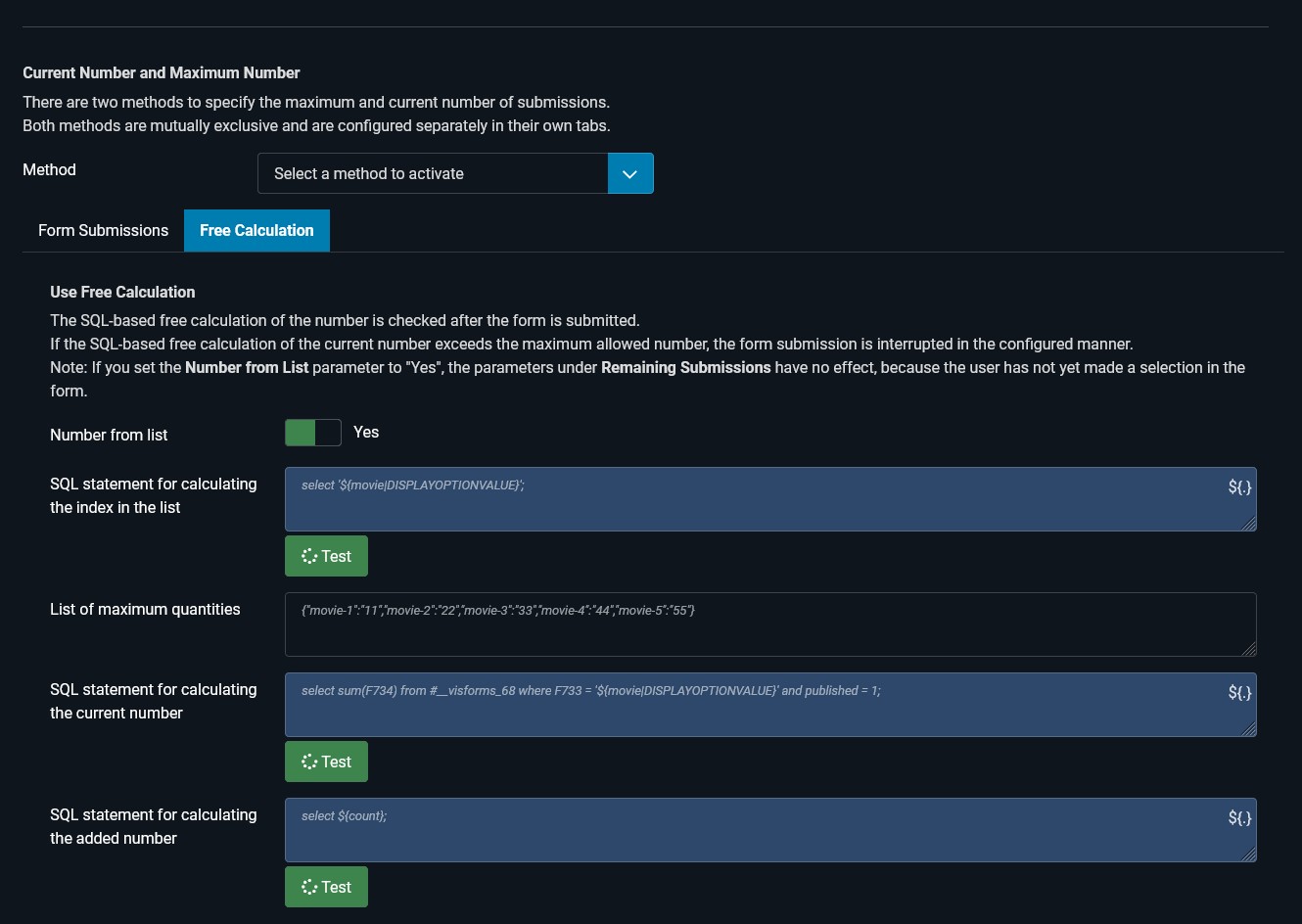
In a second step, this method allows any number of different maximum numbers in the form of a lookup list.
This also allows, for example, different maximum numbers to be defined for individual form options.
- Count from List Option = “No”
Select the Method
Method “Form Submissions”
Method “Free Calculation”
The current and maximum number of submissions depend on the number of submissions made so far and therefore on the saved form data.
The described free calculation options must therefore access the saved form data.
For maximum flexibility in freely calculating the number of submissions, a custom SQL statement with direct access to all saved form data is the most suitable formula language.
Maximum Number is Fixed
This is the case for the following setting: Option Count from List = “No”.
Maximum Numbers from a List
This applies to the following setting: Option Count from List = “Yes”.
Example: Movie Tickets for a Cinema
In this specific example, ticket reservations at a municipal cinema are limited for each individual film screening to accommodate the size of the auditorium.
This feature was developed very closely to this use case. Therefore, the explanatory text in the online configuration help for the respective options is very close to what needs to be entered for this example. In many cases, the SQL statements can probably be used more or less directly.
In these cases, only the following form-specific details need to be adjusted:
- Field names,
- Parameter names,
- Limits.
Plugin
- In the Joomla administration, activate the plugin Visforms - Limit Number of Transfers.
Form
- The form ID in the example is 68.
- In a field of type Listbox, film screenings can be selected (film, day, time).
The field name in the example is movie.
The field ID in the example is 733. - A field of type Number specifies how many tickets should be reserved.
The field name in the example is count.
The field ID in the example is 734.
Requirement
- The cinema is small, and the number of reserved tickets is limited to a maximum of 50.
Configuration
In the form configuration » tab Maximum Transmission, make the following settings:
- Option Method = ‘Free Calculation’
- Sub-tab Free Calculation » Option Count from List = ‘Yes’
Calculations
Note: Even the smallest deviations in the syntax will unfortunately lead to errors.
Then fill in the following options according to your use case:
- Option SQL statement to calculate index in the list
select'${movie|DISPLAYOPTIONVALUE}';The placeholder is enclosed in single quotes because it is a string literal in the SQL statement.
- Option List of maximum numbers
{"movie-1":"50","movie-2":"50", ...... ,"Film":"Count"}Name and value are each enclosed in double quotes.
Name and value are separated by a colon.
Name-value pairs are separated by a comma.
No additional spaces are allowed. - Option SQL statement to calculate current number
select sum(F734) from #__visforms_68 where F733 = '${movie|DISPLAYOPTIONVALUE}' and published = 1;The placeholder is enclosed in single quotes because it is a string literal in the SQL statement.
- Option SQL statement to calculate count to be added
select '${count}';The placeholder is enclosed in single quotes because it is a string literal in the SQL statement.
Form-specific details:
- ${movie}: The name of the placeholder in the listbox for selecting the movie show.
This placeholder name is calculated as follows (field name enclosed in ${}):
${field name}</span. - movie-1, movie-2, movie-3:
The option values that can be selected in the listbox for choosing the movie show. - {“movie-1”:“11”}: This means that a total of 11 tickets can be pre-ordered for movie movie-1.
- ${count} is the name of the placeholder for the field containing the desired number of tickets.
This placeholder name is generated as follows (field name enclosed in ${}):
${Field Name}. - #__visforms_68 is the database table name of the form.
This name is generated by appending the form ID to #__visforms_:
#__visforms_FormularID.
The prefix #__ is automatically replaced by Joomla with the configured Joomla table prefix of the Joomla instance.
Note: At the beginning are two _ characters, so #_ _ - F734 is the database field name of the field containing the desired number of cards.
This name is derived by appending the field ID to the capital letter F. - F733: The database field name of the listbox for selecting the film screening.
This name is derived by appending the field ID to the capital letter F.
Texts
Custom Message
The custom message can be formatted using Visforms Placeholder and the placeholder %d for the number of remaining transfers:
- Custom Message:
‘The selected movie ‘${movie}’ has only %d reservable seats left.’ - Example use of user information in the message text using the framework object user:
- ‘user id = ${user:id}, name = ${user:name}, username = ${user:username}, email = ${user:email}, registerDate = ${user:registerDate}, lastvisitDate = ${user:lastvisitDate}, groups = ${user:groups}.’
- ‘Hello ${user:name}, the selected movie ‘${movie}’ has only %d reservable seats left.’
Note: The %d part will be replaced with the current number of available seats.
Remaining Seats
For technical reasons, it is not possible to display an early notification about the number of remaining seats before submitting the form.
The number of remaining seats can only be determined after selecting a film screening and receiving the submitted form.
Only an individual notification in the event that the maximum number of seats is exceeded is possible in this case.